
Alerts: how we tell you
How Indibaba tells you about new leads, messages and orders. Today that is in the app; WhatsApp, email and SMS alerts are not live yet.
3 steps · checked against the seller panel on 17 Nov 2026
Not switched on yet
- WhatsApp, email and SMS alerts are not live yet. Everything shows in the app under Notifications, so open the app once a day.
The pictures are the real seller screens, filled in with sample data: the business, buyers, prices and messages in them are made up.
Step 1 of 3
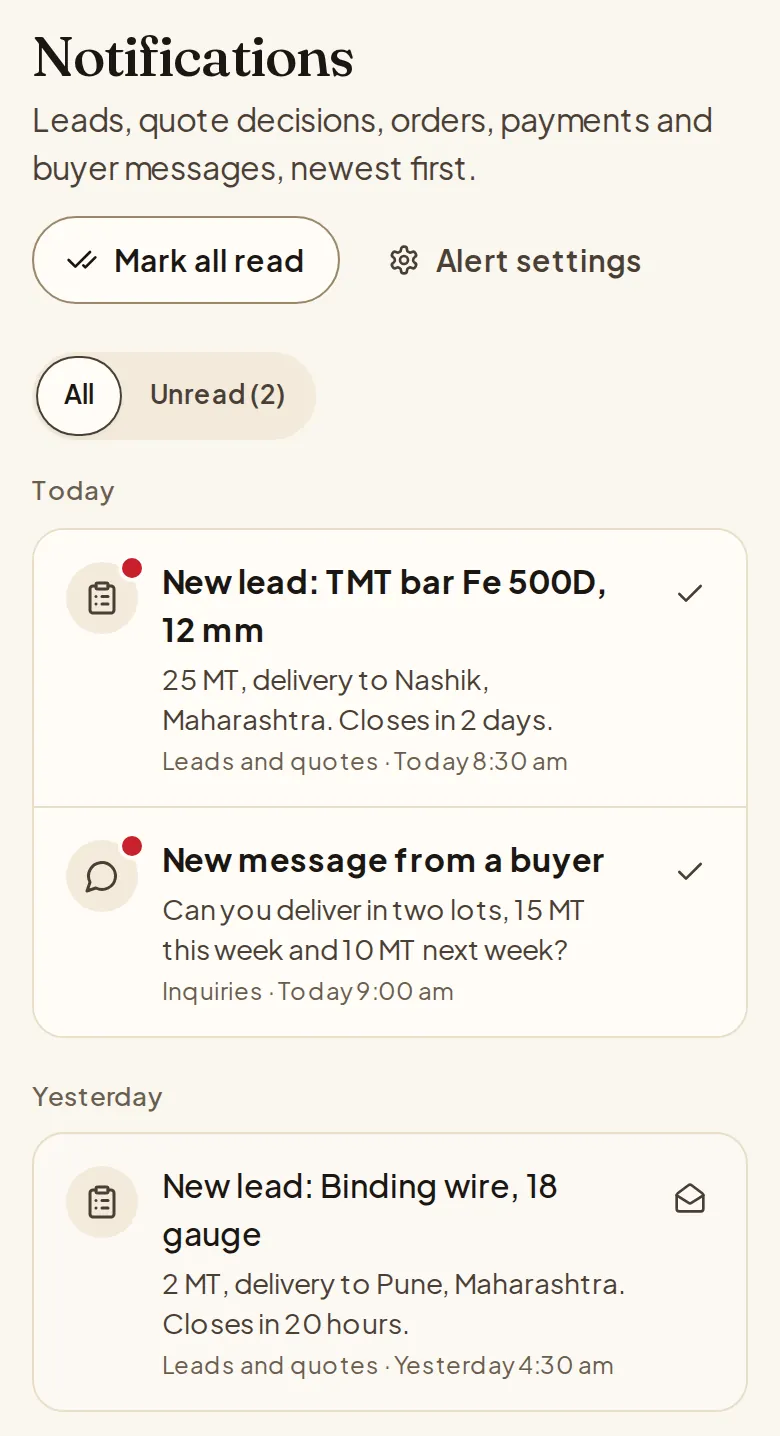
Check Notifications
New leads, quote decisions, orders and buyer messages show under Notifications, newest first, with a dot on the bell. On a phone, Notifications is under Account. Tap one to open it.
Example screen with sample data Step 2 of 3
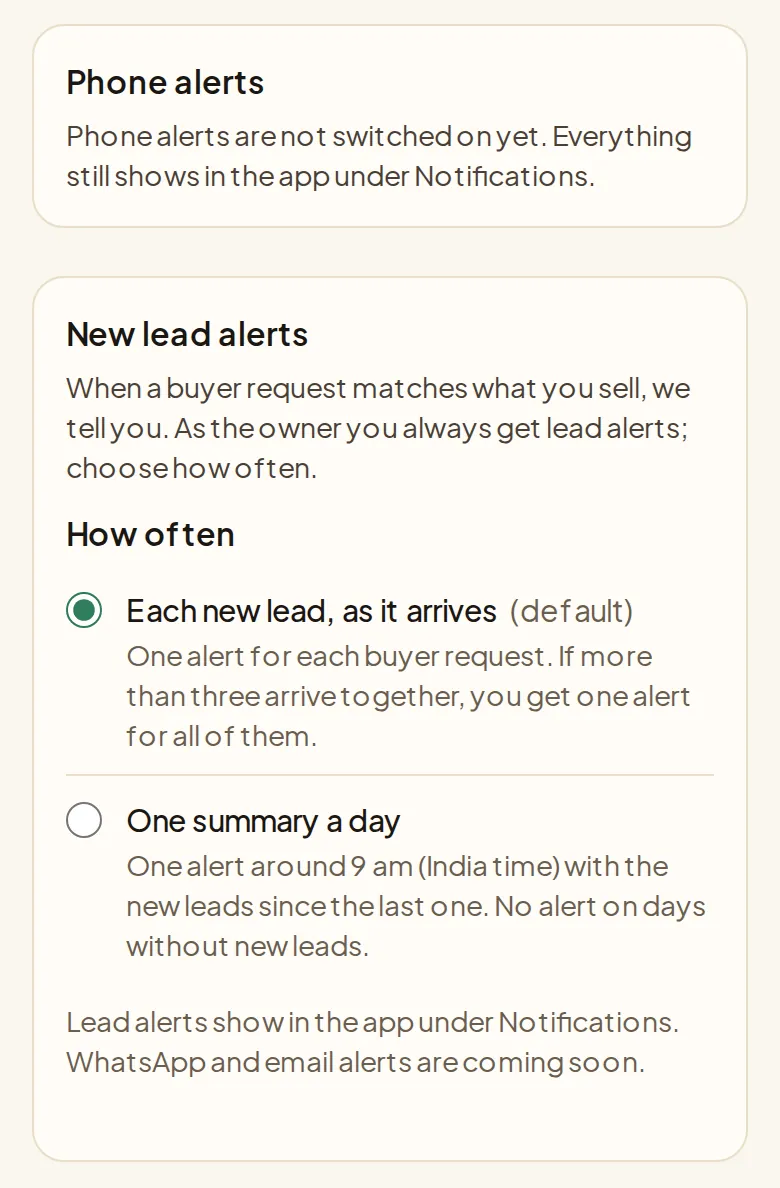
Choose how often you hear about leads
Open Settings, then Alerts. Under New lead alerts, choose each new lead as it arrives, or one summary a day. As the owner you always get lead alerts. Your team members get them only if they turn them on.
Phone alerts are not switched on yet. The Alerts tab says so, and shows the button once they are.
Example screen with sample data Step 3 of 3
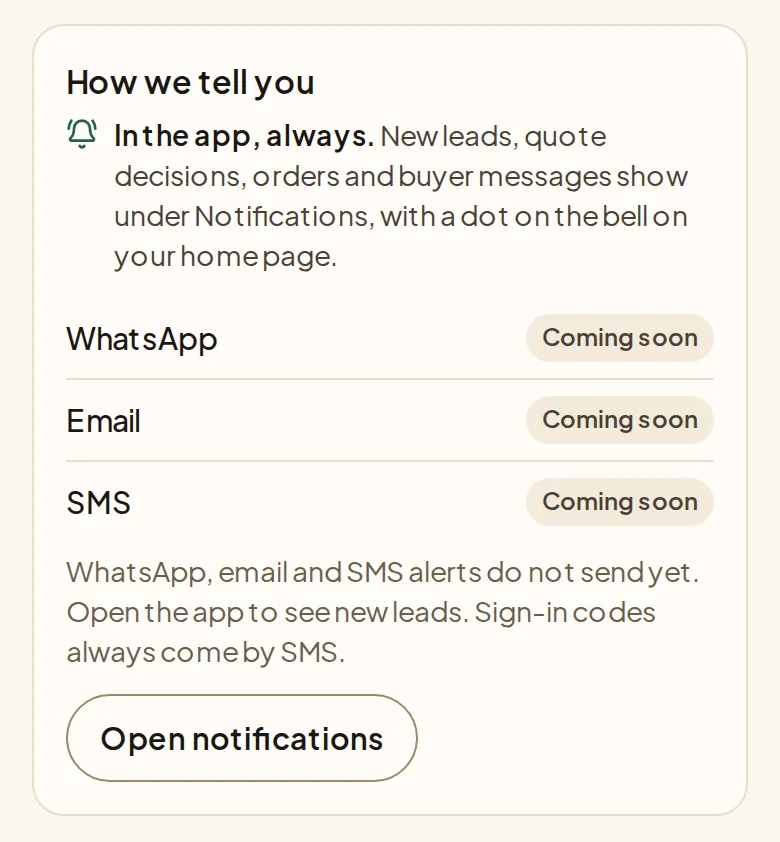
WhatsApp, email and SMS
These are coming soon, and the Alerts tab marks them that way. Sign-in codes always come by SMS.
Example screen with sample data
Related questions
Still have a question?
Send us a message, or email support@indibaba.com.