Your company details and public profile
Keep your business details right for the Certified check, and fill in the profile buyers see: tagline, photos, certificates and where you deliver.
3 steps · checked against the seller panel on 17 Nov 2026
Not switched on yet
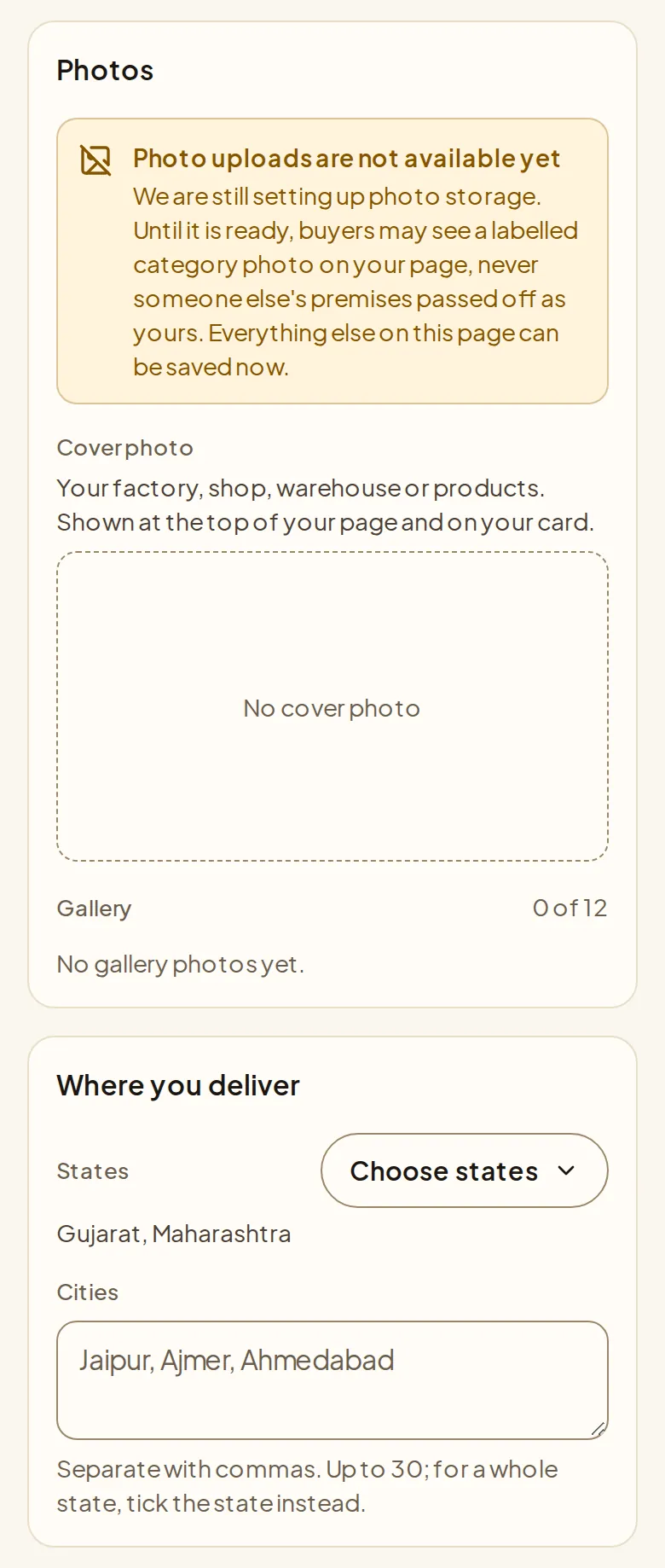
- Photo upload is not switched on yet. Until it is, buyers may see a labelled category photo on your page, never someone else’s premises shown as yours.
The pictures are the real seller screens, filled in with sample data: the business, buyers, prices and messages in them are made up.
Step 1 of 3
Check your business identity
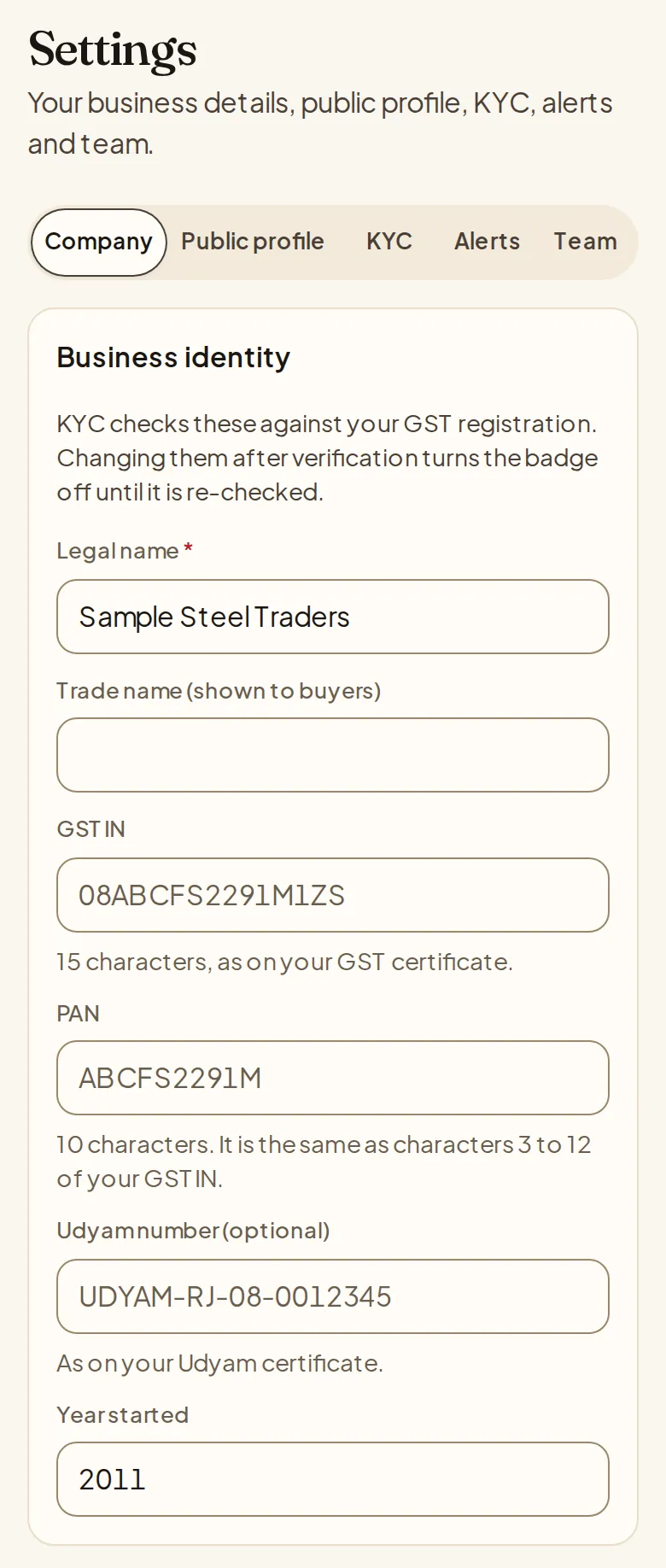
Open Settings, then Company. On a phone, Settings is under Account. Fill in your legal name, the trade name buyers see, GSTIN, PAN, Udyam number if you have one, and the year you started. Then your address and what you make or trade. Tap Save changes.
The Certified check compares these details with your GST registration. If you change your legal details after you pass, the badge turns off until our team checks them again.
To change the mobile number you sign in with, contact our team.
Example screen with sample data Step 2 of 3
See how buyers see you
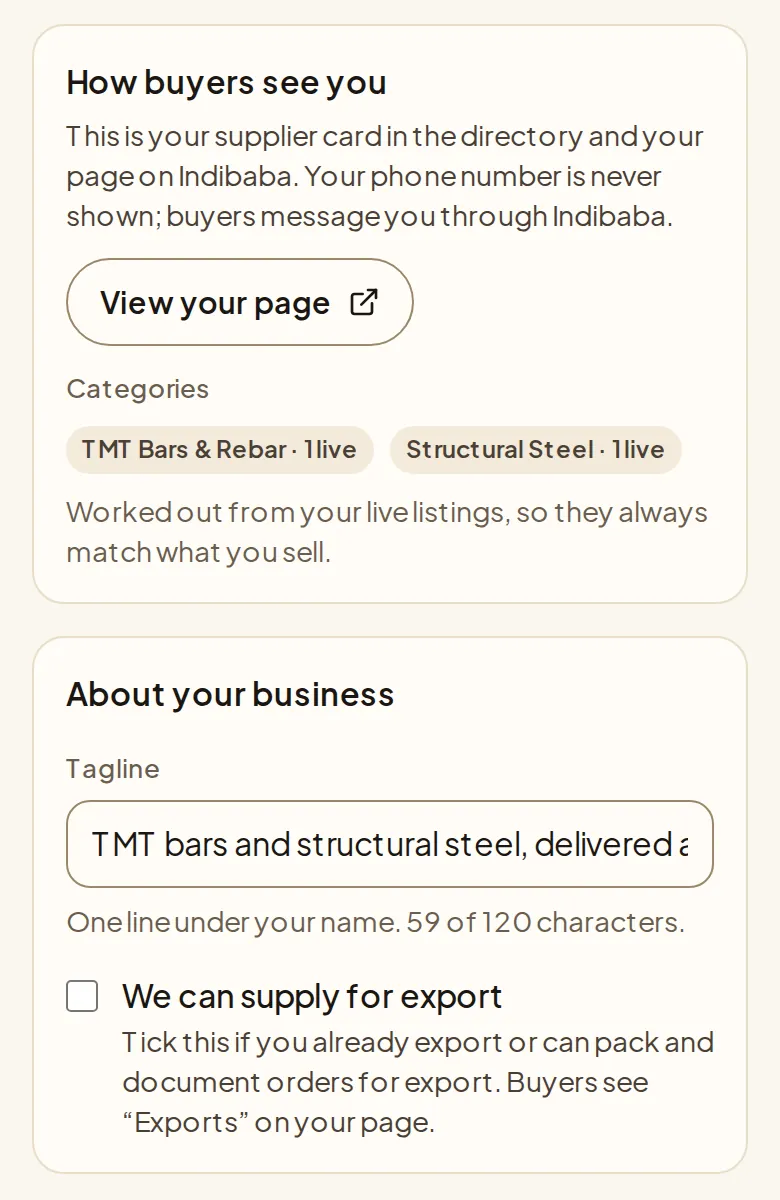
Open the Public profile tab. Your categories come from your live listings, so buyers only see trades you really list. Add a tagline: one line under your name. Tap View your page to see it as a buyer does.
Your phone number is never shown. Buyers message you through Indibaba.
Example screen with sample data Step 3 of 3
Photos, certificates and where you deliver
Add a cover photo and gallery photos of your factory, shop, warehouse or products. Choose the states and cities you deliver to.
Under Certificates, add ISO, BIS and other certificates your business holds. Buyers see them marked as provided by you and not checked yet, until our team checks them. Expired certificates are hidden from buyers.
Example screen with sample data
Related questions
Still have a question?
Send us a message, or email support@indibaba.com.