Claim an account our team set up
If our team set up your business on Indibaba with your agreement, you get a link. Sign in with a code on your own phone, check the details and claim the account.
6 steps · checked against the seller panel on 17 Nov 2026
Not switched on yet
- Photo upload is not switched on yet. A listing needs a real photo to go live, so for now you can save products as drafts only. Leads are matched to live listings, so they reach you once photo upload is on and your listings are live.
- WhatsApp messages from Indibaba are not switched on yet. The WhatsApp choice on the claim screen only records your answer.
The pictures are the real seller screens, filled in with sample data: the business, buyers, prices and messages in them are made up.
Step 1 of 6
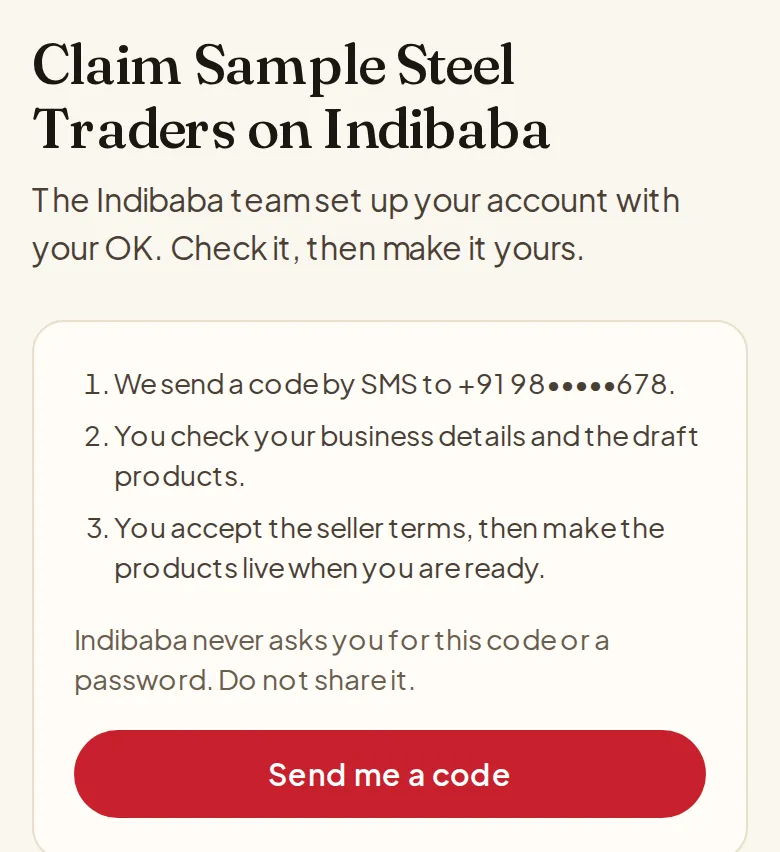
Open the link we sent you
The page shows your business name and the end of the mobile number our team recorded for you. Opening the link sends nothing. Tap Send me a code, then enter the 6-digit code from the SMS and tap Verify and continue.
Indibaba never asks you for a sign-in code or a password. Do not share them with anyone.
A link stops working when it expires, when our team sends a newer one, or once the account is claimed. You can always sign in with your mobile number instead.
Example screen with sample data Step 2 of 6
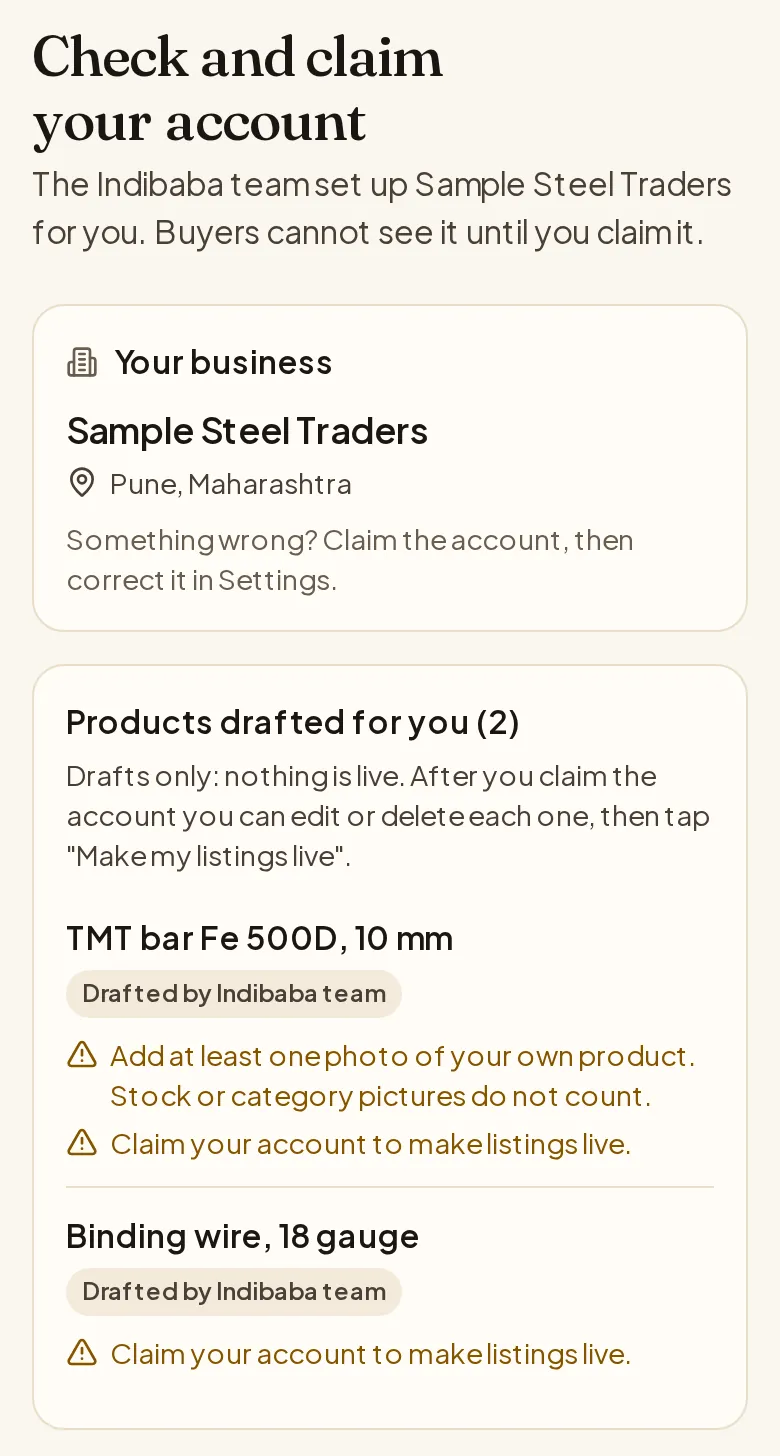
Check your business and the products drafted for you
The seller panel opens on Check and claim your account. Buyers cannot see your business until you claim it.
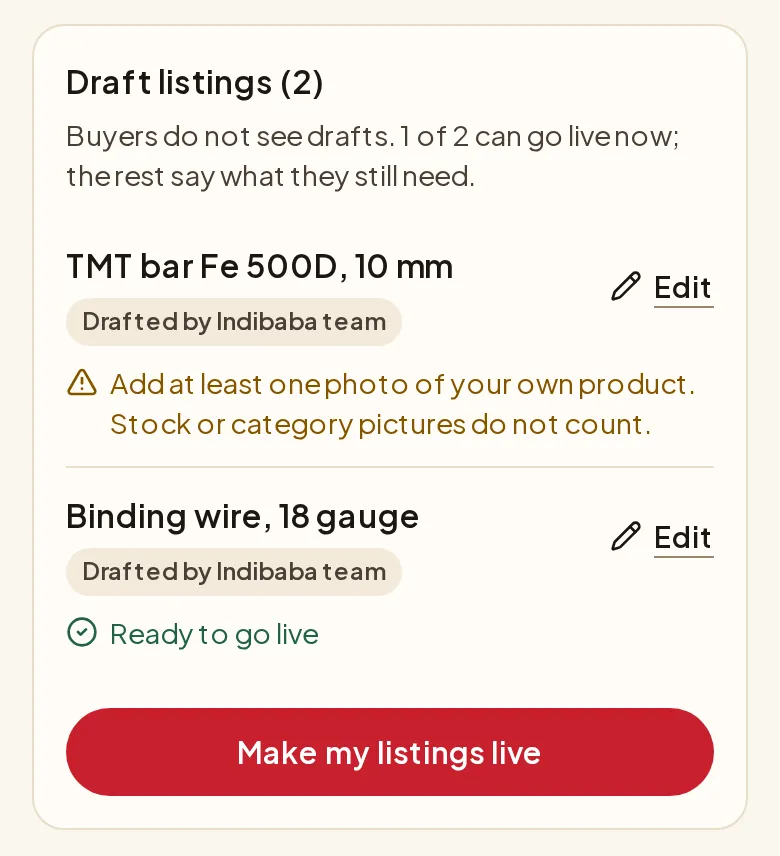
Our team may have drafted some of your products. Drafts are not live. Each one lists what it still needs before it can go live. You can edit or delete them after you claim the account.
Example screen with sample data Step 3 of 6
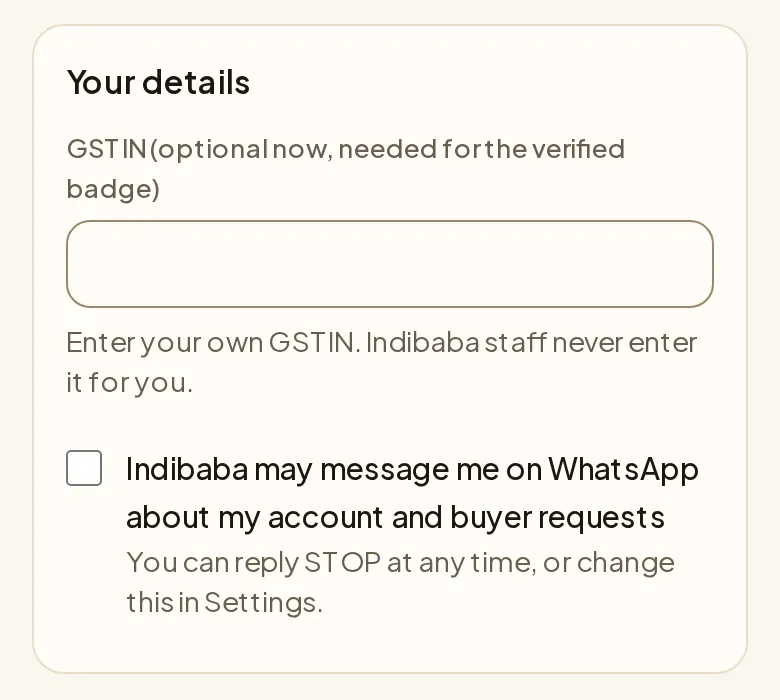
Add your GSTIN
Enter your own GSTIN. It is optional now, but the Certified check needs it, and Indibaba staff never enter it for you.
Choose whether Indibaba may message you on WhatsApp about your account and buyer requests.
Example screen with sample data Step 4 of 6
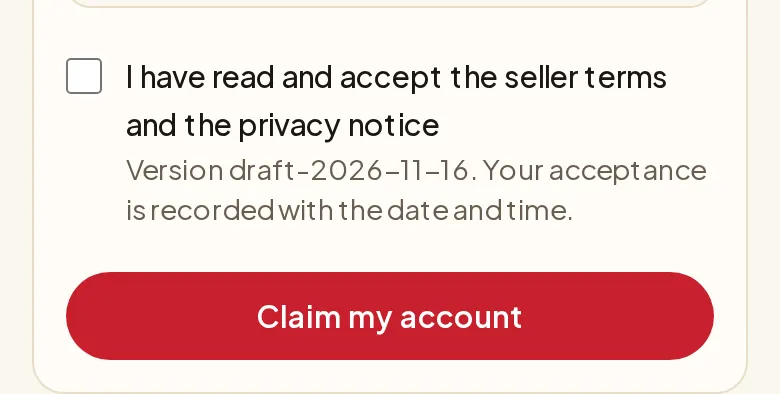
Accept the terms and claim
Read the seller terms and the privacy notice on the same screen. Tick the box and tap Claim my account. Your acceptance is recorded with the date and time.
Example screen with sample data Step 5 of 6
Make your listings live
After you claim, your home page lists the drafts. Tap Edit to check or correct each one, tick the ones you want buyers to see, then tap Make live. Drafts you do not tick stay drafts.
Only drafts that meet the listing rules go live. The rest stay drafts and say what they still need. Nothing goes live without you.
Example screen with sample data Step 6 of 6
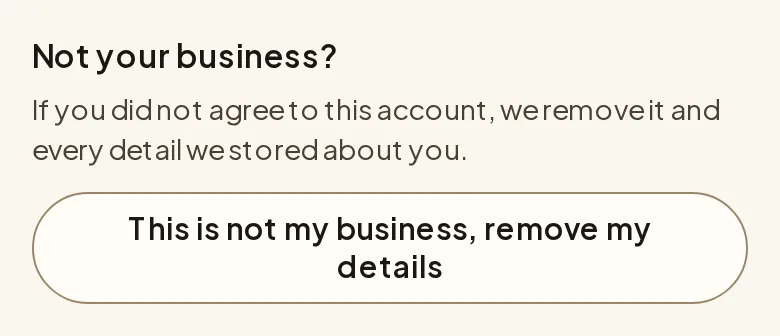
Not your business?
If you did not agree to this account, tap This is not my business, remove my details. We delete the account, its draft listings and photos, and your name and phone number. This cannot be undone.
Example screen with sample data
Related questions
Still have a question?
Send us a message, or email support@indibaba.com.