List a product
What a listing needs before buyers can see it: a real photo, price and unit, minimum order, GST rate, product type, key specifications, and BIS or ISI details where the law asks.
5 steps · checked against the seller panel on 17 Nov 2026
Not switched on yet
- Photo upload is not switched on yet. A listing needs a real photo to go live, so for now you can save products as drafts only. Leads are matched to live listings, so they reach you once photo upload is on and your listings are live.
The pictures are the real seller screens, filled in with sample data: the business, buyers, prices and messages in them are made up.
Step 1 of 5
Name the product and choose its product type
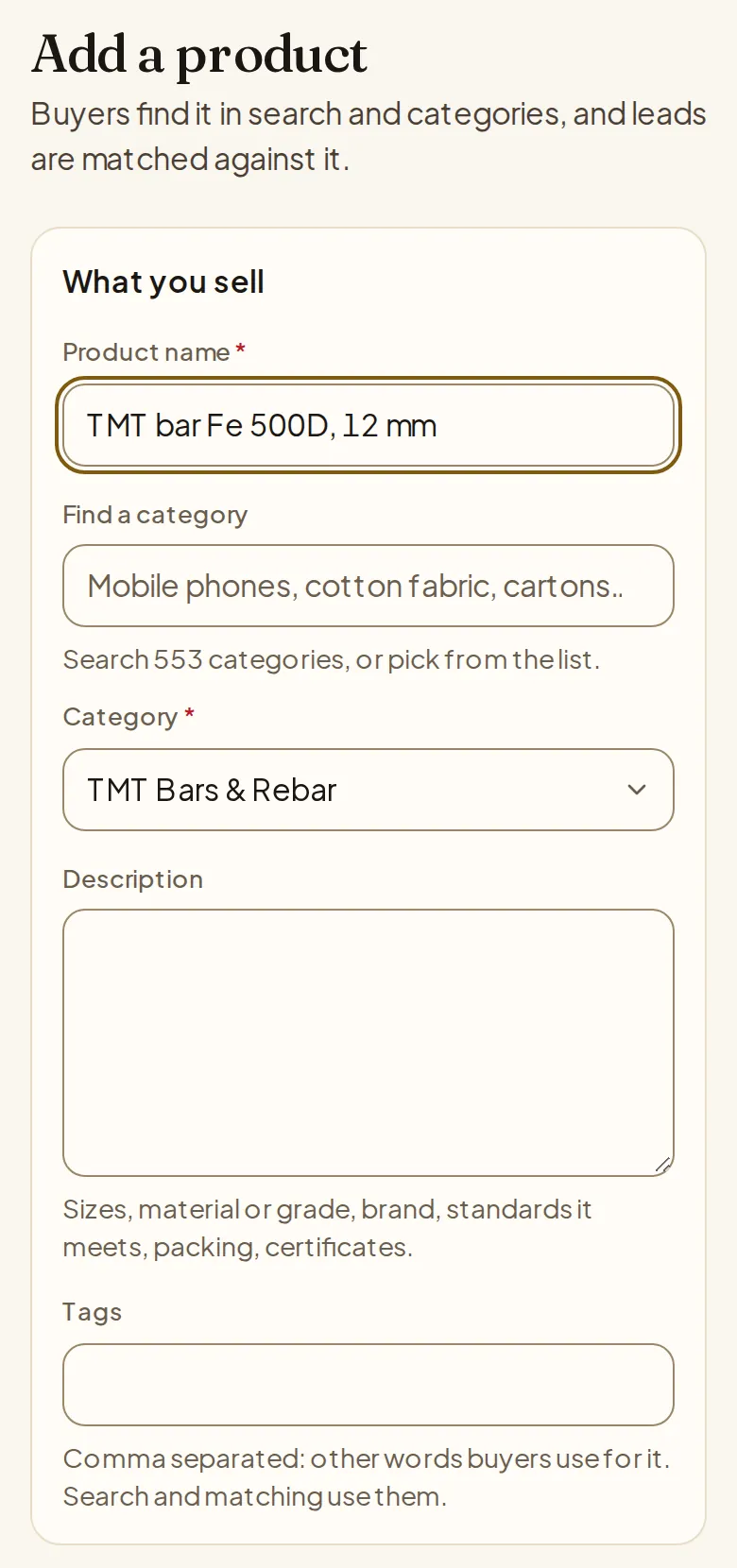
Open Catalog and tap Add a product. Name it the way buyers ask for it: what it is, plus size, grade or model, for example “TMT bar Fe 500D, 12 mm” rather than “Best quality bars”.
Choose a product type, not only an industry. Search for it, or tap Use this category when the form suggests one from the product name. Add tags with other words buyers use; search and matching read them.
Example screen with sample data Step 2 of 5
Add the price, unit, minimum order and GST rate
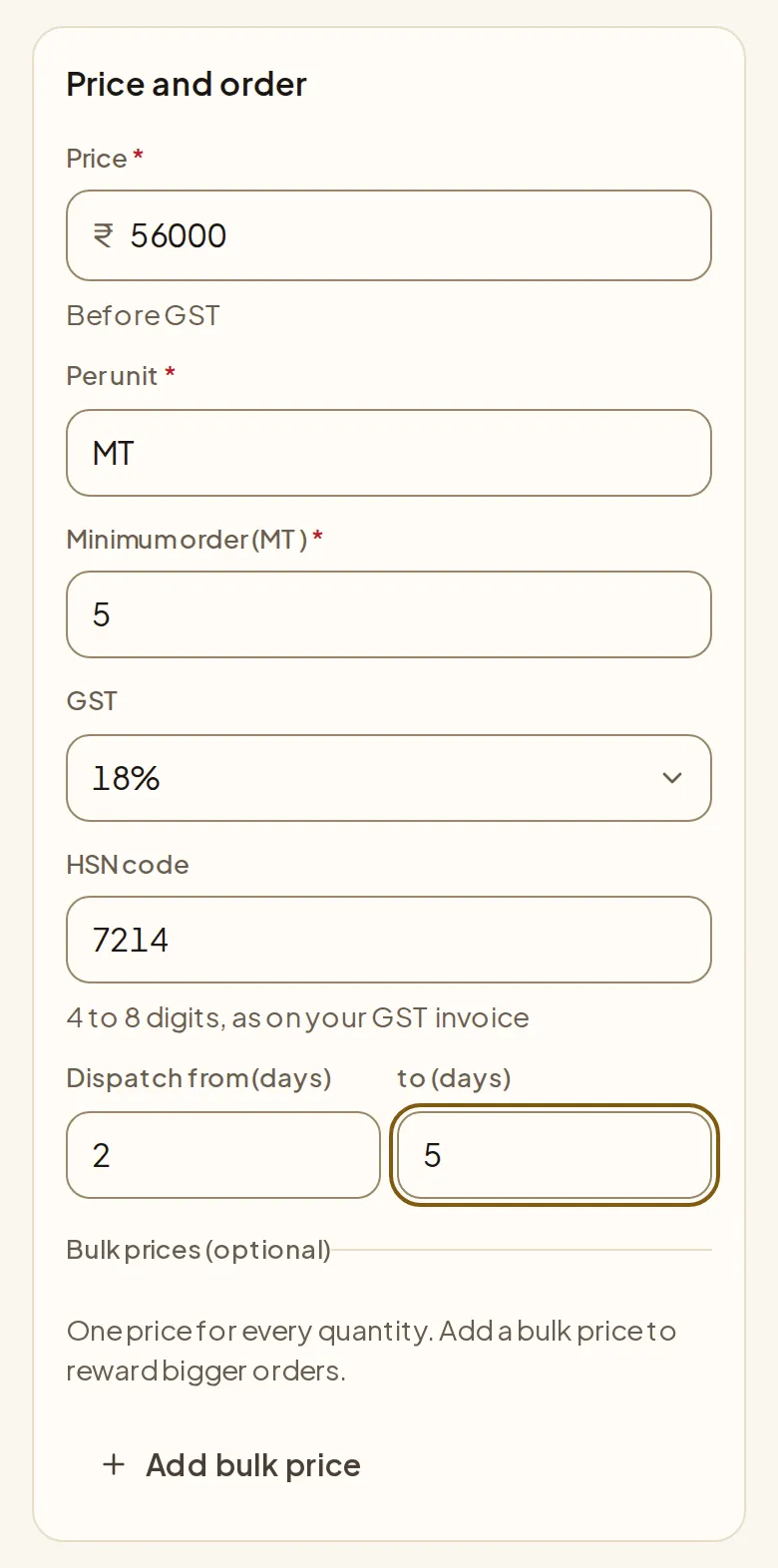
Under Price and order:
- Price in rupees, before GST, and the unit it is for, such as MT, kg or piece.
- Minimum order: the smallest quantity you sell.
- GST: the rate on your tax invoice for this product. The form starts at 18%, so change it if your rate is different.
- HSN code: 4, 6 or 8 digits, as on your GST invoice.
- Dispatch time in days, and bulk prices for bigger orders if you offer them.
Example screen with sample data Step 3 of 5
Fill in the key specifications, and BIS or ISI details where the law asks
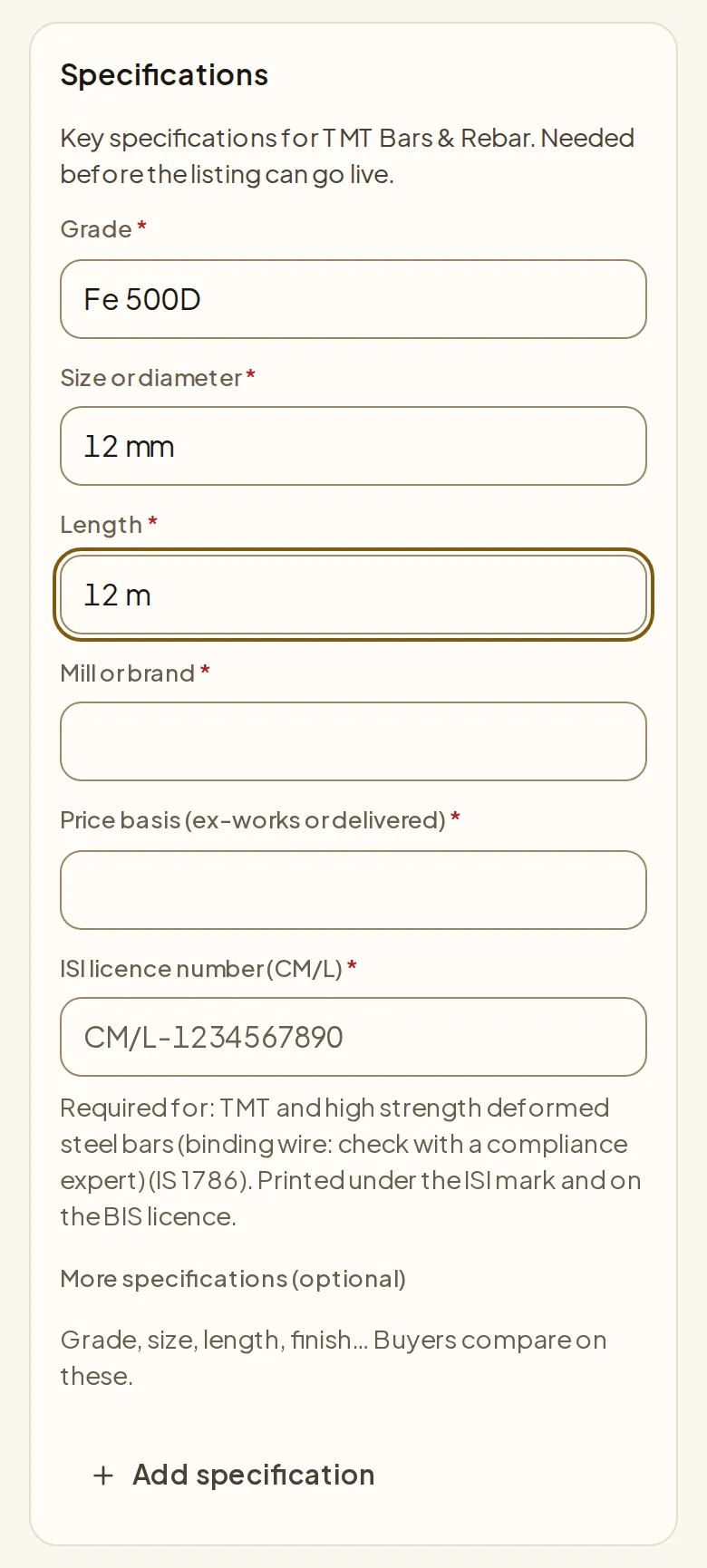
Each product type has key specifications that must be filled in before the listing can go live. For TMT bars they are grade, size or diameter, length, mill or brand, and price basis.
Some products may only be sold in India with BIS certification, under a Quality Control Order. Goods under the ISI mark scheme carry an ISI licence number that starts CM/L-. Many electronics need a BIS registration, whose number starts R-. When your product type is covered, the form asks for the number and the listing cannot go live without it. You can check a number in the BIS Care app.
Not sure whether your product is covered? Check with a compliance expert. Our product types follow BIS’s lists, linked below.
Example screen with sample data Step 4 of 5
Add a real photo
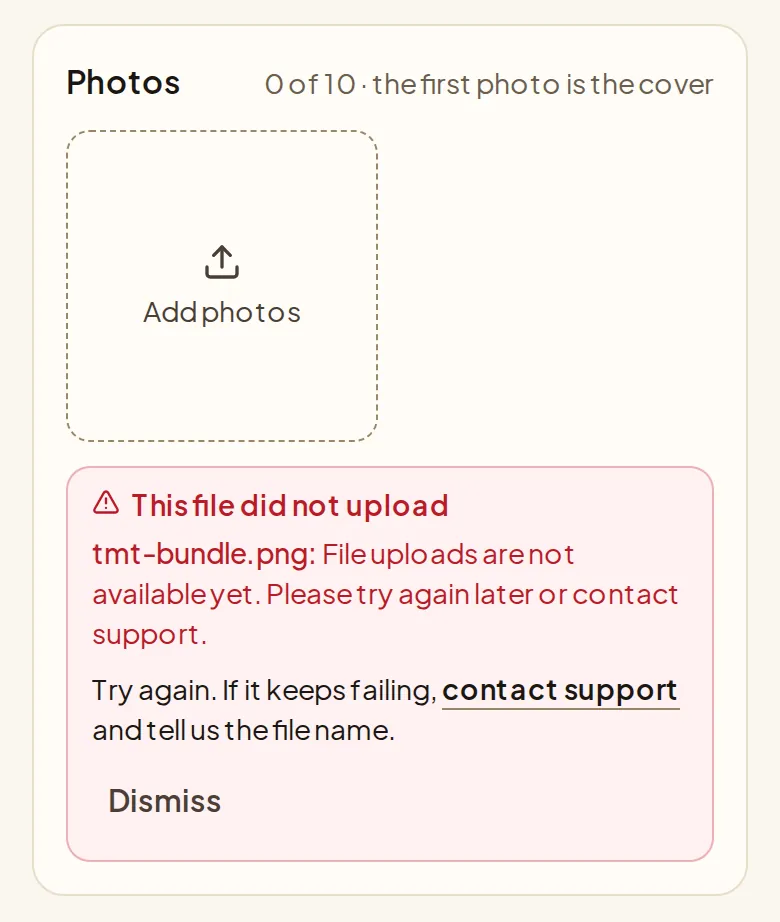
Add at least one photo of your own product. Stock or category pictures do not count. Use JPG, PNG or WebP files under 10 MB, up to 10 photos. The first photo is the cover.
Photo upload is not switched on yet. A listing needs a real photo to go live, so for now you can save products as drafts only. Leads are matched to live listings, so they reach you once photo upload is on and your listings are live.
Example screen with sample data Step 5 of 5
Make it live, or save a draft
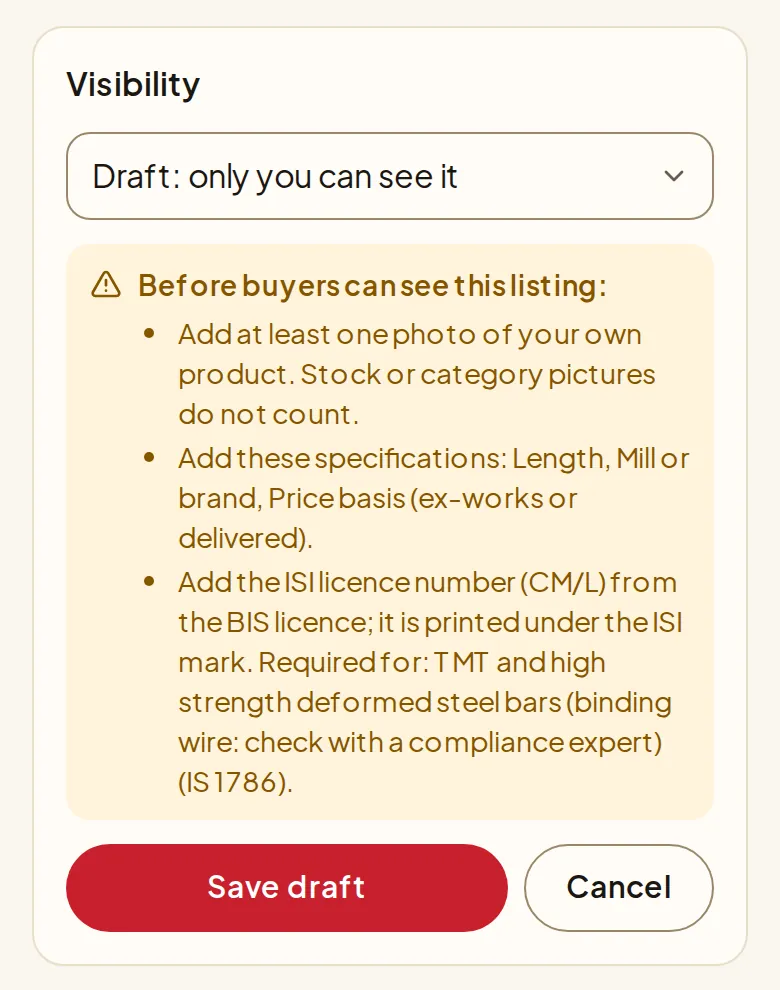
Under Visibility, choose Live so buyers can find it, or Draft so only you see it. Drafts are never matched to leads.
If you ask for Live and something is missing, the listing is saved as a draft and the form lists what it still needs. Our team can take down a listing that breaks the seller terms or the law.
Example screen with sample data
Related questions
Sources
For the legal points in this guide. General information, not legal advice.
Still have a question?
Send us a message, or email support@indibaba.com.