
Send a quote
Quote your rate before GST, choose the GST rate and HSN code, check the landed price the buyer will compare, and reuse saved terms.
7 steps · checked against the seller panel on 17 Nov 2026
Not switched on yet
- Online payment through Indibaba is not live yet. For now the buyer pays you directly, so agree the payment terms with the buyer in writing before you dispatch.
The pictures are the real seller screens, filled in with sample data: the business, buyers, prices and messages in them are made up.
Step 1 of 7
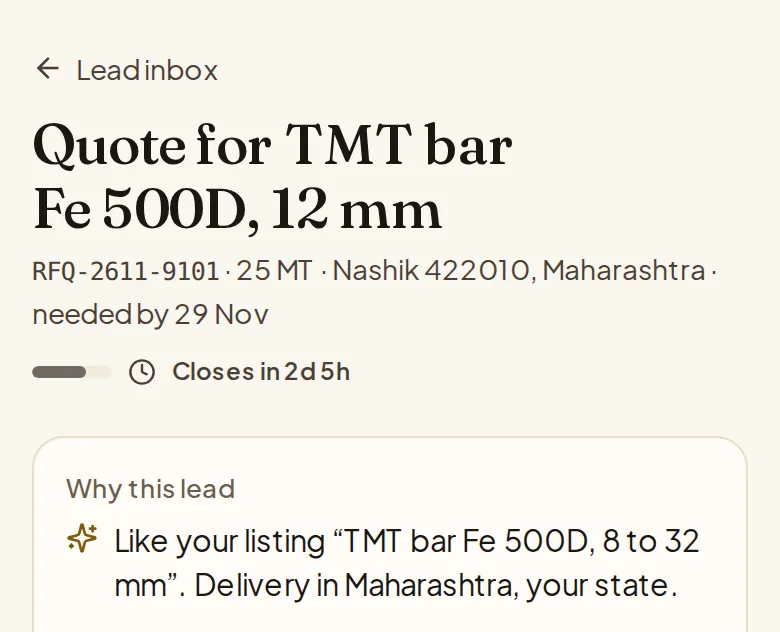
Open the lead
Tap a lead in your inbox. The top says why it matched your listings, and the time left to quote.
Example screen with sample data Step 2 of 7
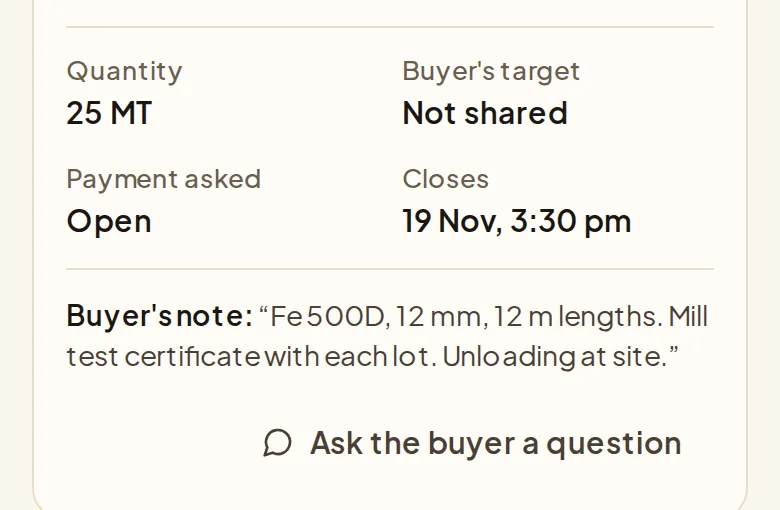
Read the details, or ask a question
Check the quantity, the buyer’s target price if they shared one, the closing time and the buyer’s note. You never see other suppliers’ prices, and they never see yours.
If something is unclear, tap Ask the buyer a question. The conversation opens under Inquiries.
Example screen with sample data Step 3 of 7
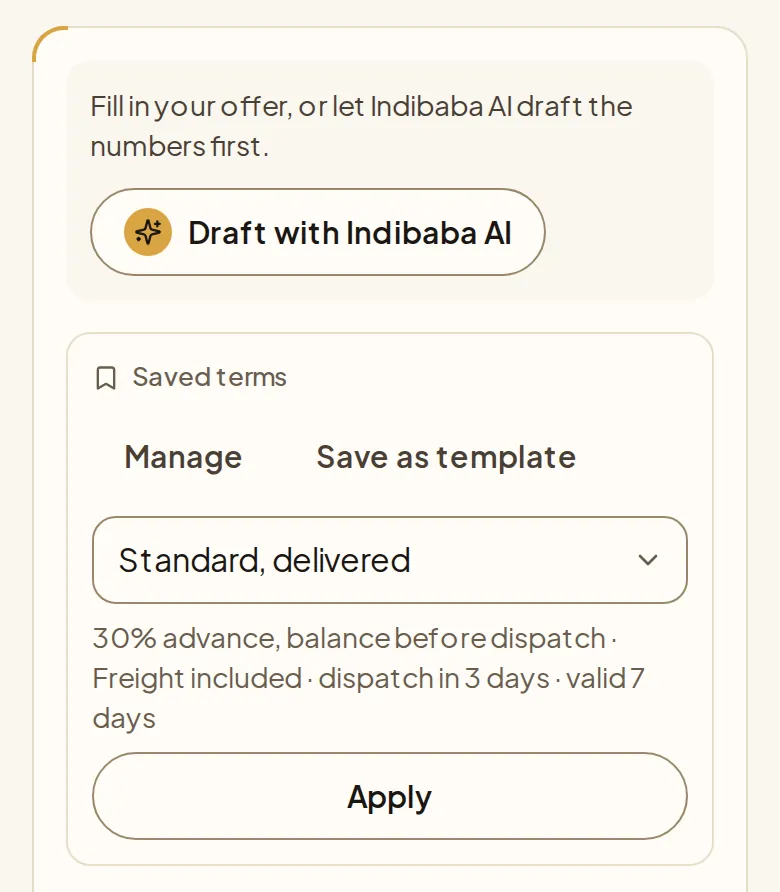
Start from saved terms
Under Saved terms, choose a template and tap Apply. It fills payment, freight, dispatch, validity and your message. Your rate and quantity stay as they are: a template never saves a price. Your whole team shares the templates.
Draft with Indibaba AI fills in the numbers as a starting point, and says so when it can only give a rough one. Check every number. Nothing goes to the buyer until you tap Send quote.
Example screen with sample data Step 4 of 7
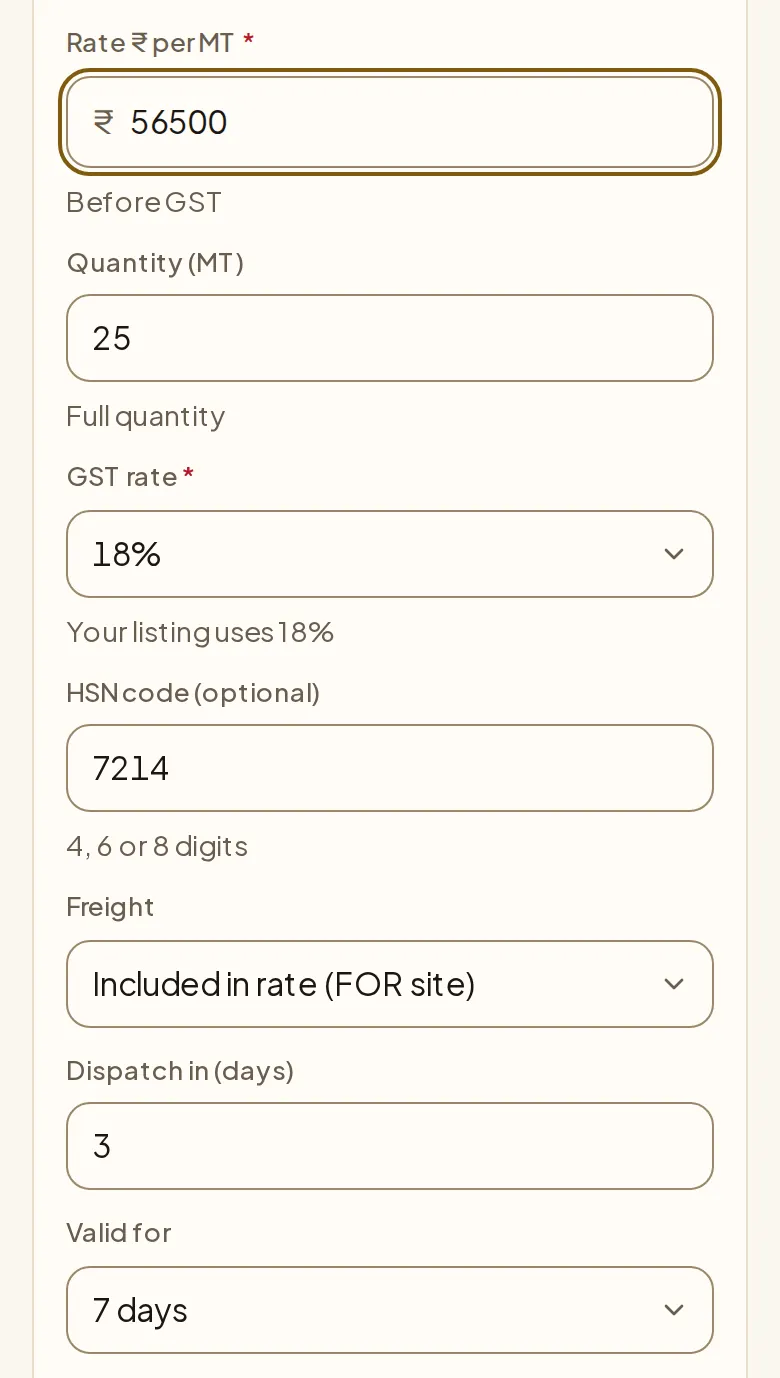
Fill in the rate, GST and HSN
Fill in your offer:
- Rate per unit, before GST.
- Quantity: the full quantity, or the part you can supply. Part quotes are marked as part.
- GST rate: choose it on every quote. There is no default, and the form shows the rate your matching listing uses.
- HSN code: optional, 4, 6 or 8 digits. It is filled in from your matching listing.
- Freight: included in the rate, charged extra (enter the amount), or ex-works, where the buyer arranges transport.
- Dispatch time in days, and how long the quote is valid: 24 hours to 30 days.
Example screen with sample data Step 5 of 7
Check the landed price and send
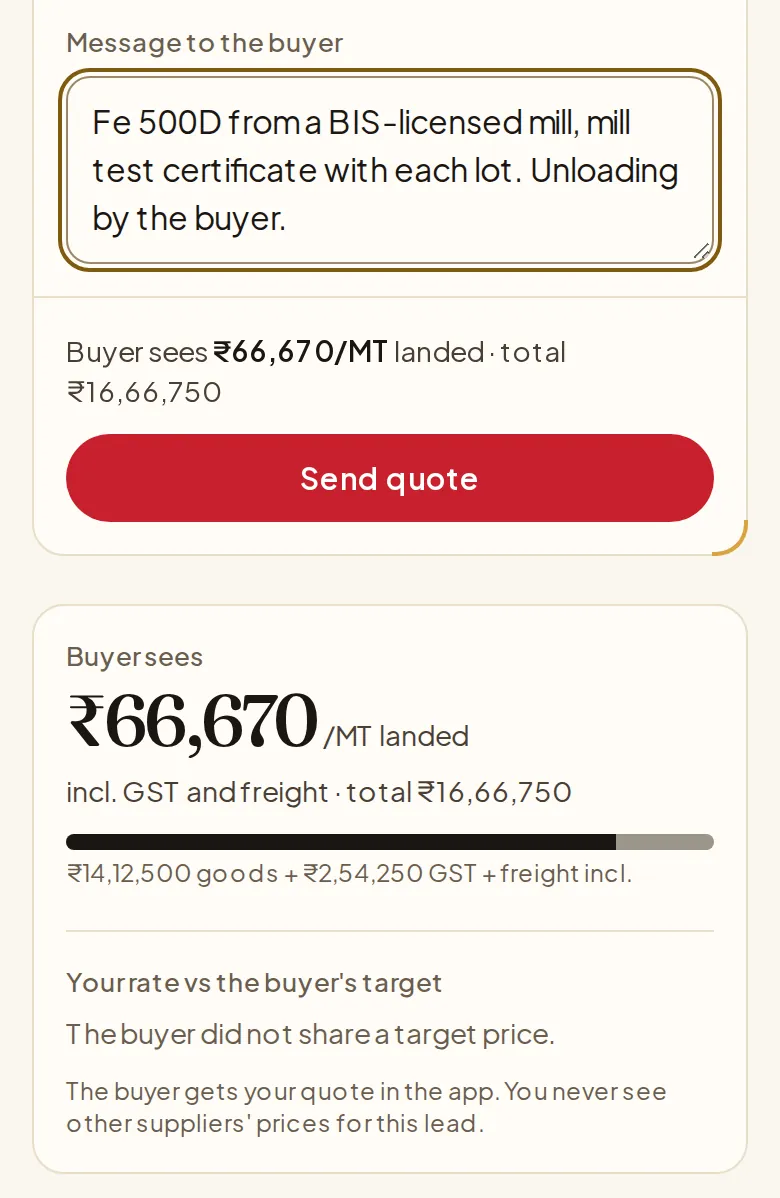
Buyers compare quotes on landed cost: your rate plus freight plus GST. Buyer sees shows that price per unit and in total as you type. If you quote ex-works, the buyer is told that freight is not included.
In the message, name the brand, grade and size, test certificates, packing and unloading. Then tap Send quote.
Example screen with sample data Step 6 of 7
Save terms you use often
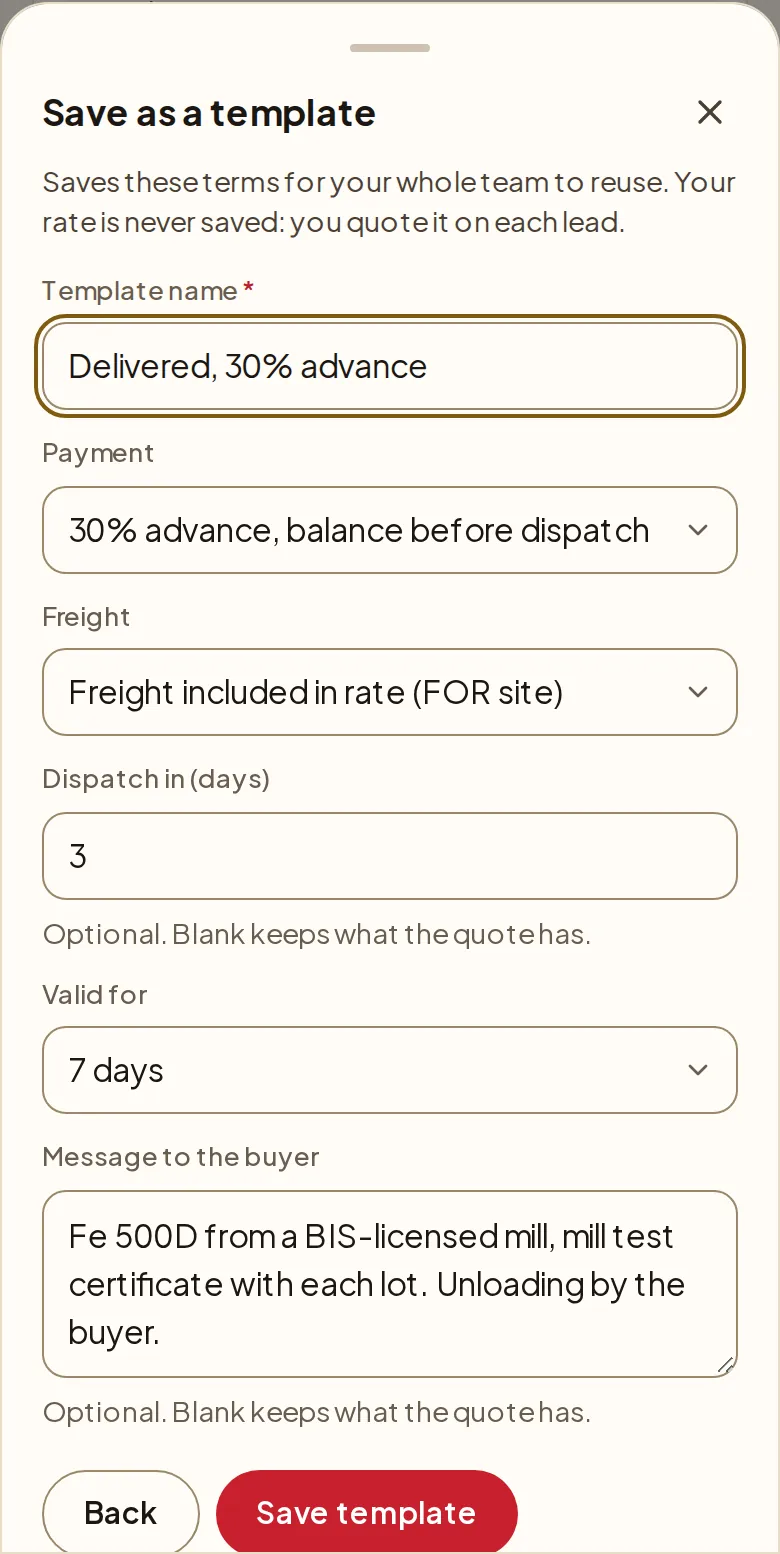
Tap Save as template to keep this quote’s payment, freight, dispatch, validity and message under a name. You can keep up to 20 templates, and edit or delete them under Manage.
Example screen with sample data Step 7 of 7
Revise or withdraw
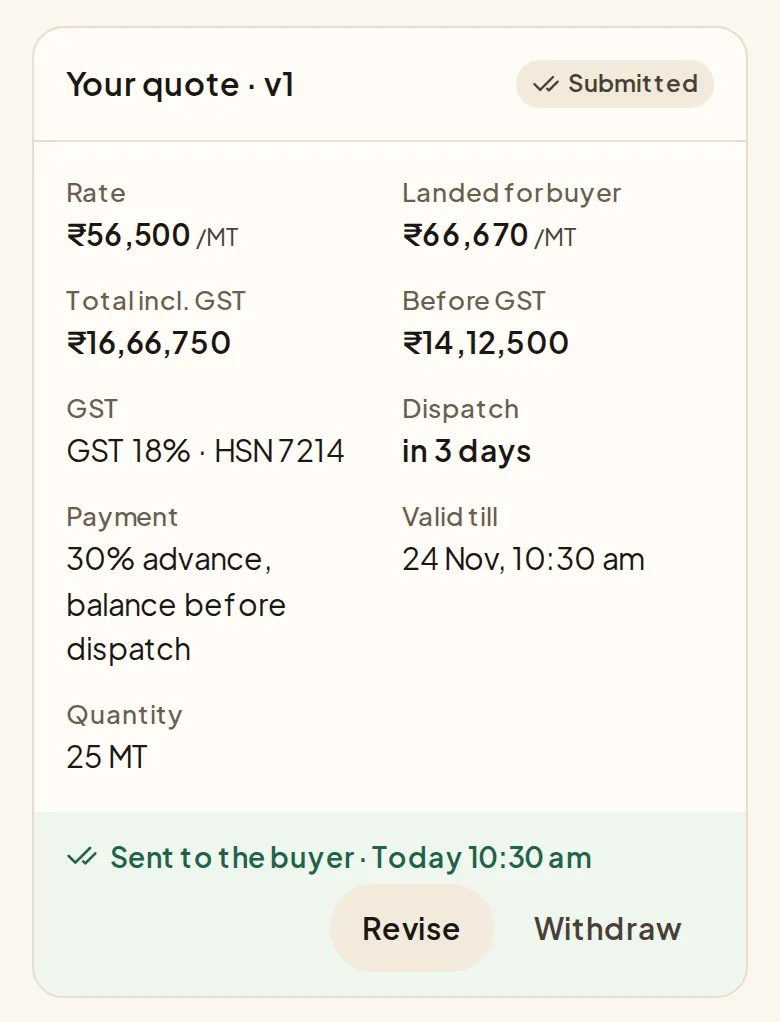
Your quote shows the rate, the landed price for the buyer, the GST and the HSN code. While the request is open and the buyer has not decided, tap Revise to send a new version (the buyer is told about it) or Withdraw.
You can have one active quote per request. If the buyer declines it, you cannot quote again on that request.
Example screen with sample data
Related questions
Still have a question?
Send us a message, or email support@indibaba.com.